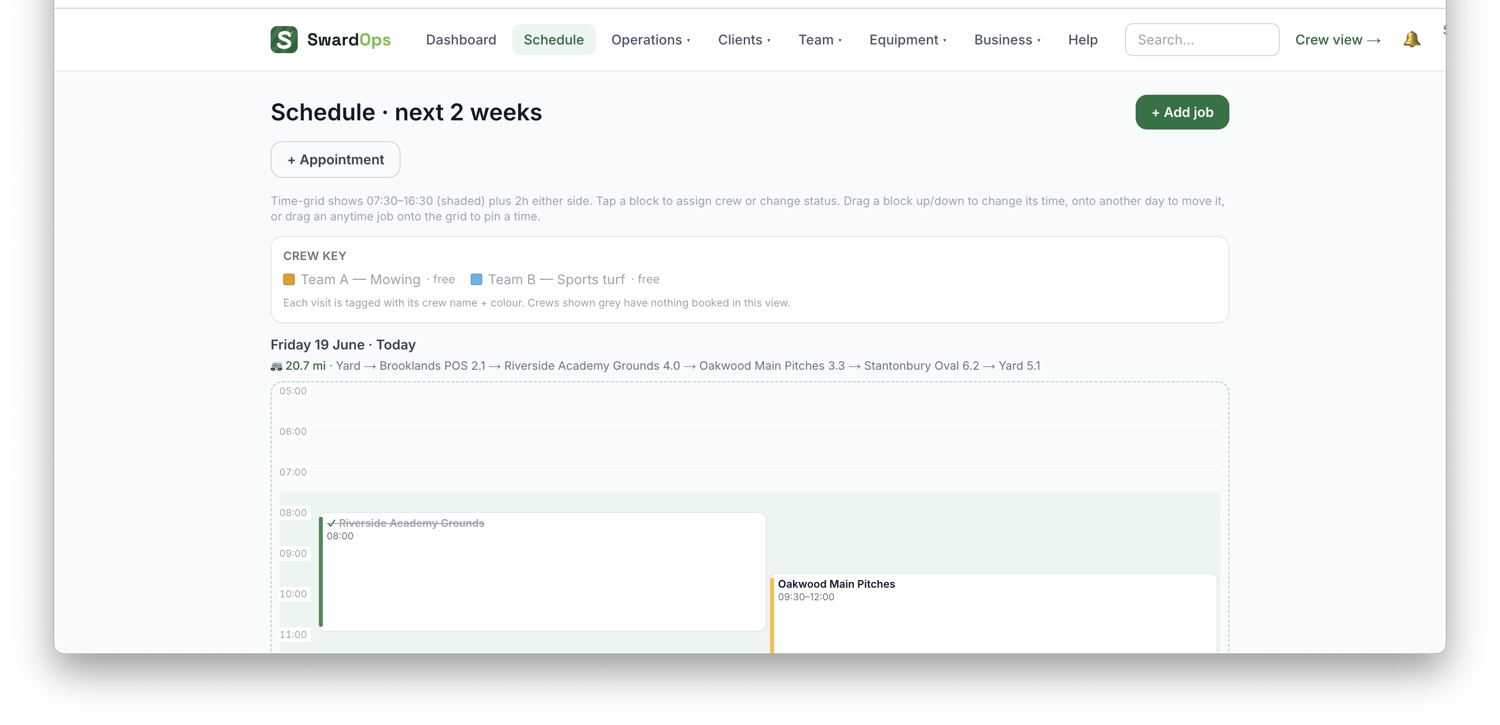
Schedule is your planning board. Each visit shows the site, the work and its timing.
To schedule work:
- Schedule → New job (or click a day on the board).
- Pick the client & site, the service/work, and the date.
Three other ways in, all ending at the same form. New job on a client's page: if they have one site it opens straight on it, if they have several it asks which, and if they have none it adds the site first. New round on a site goes directly to that site. A contract's own button limits the choice to the sites that contract covers. A job always belongs to a site rather than to a client, because the site carries the address, the map and the clock-in area the crew need. 3. Set the timing: a fixed start time, a time window, or "any time that day". 4. Assign a crew (or individual staff). Assigned crew get it on their phones.
When several crews are out on the same day, each crew gets its own row so you can see the whole operation at a glance. Blocks on the day view are sized from the visit's task time estimates, so the board shows the real shape of the day.
Editing on the board: tap a block (or the ✎ on a card) and the editor opens right there — change status or team, type a new length, or Delete visit (one visit only; the round carries on). On a phone it slides up from the bottom so you never lose your place. You can also drag the bottom edge of a timed block to change how long it is; that visit keeps its own length and the round's default is untouched. Visits that belong to a repeating round show a small repeat mark.
Keeping the day realistic: travel between sites is checked with real traffic timings, and the board warns you when someone can't physically make their next job or is double-booked. The Fix travel and Fix overlaps buttons re-space the day for you. Days with 3+ flexible visits also get a one-tap Optimise route that re-orders them for the least driving.
Colour coding: the By crew / By service tabs above the board decide what the colours mean, on the day, week, fortnight and month views. By crew uses each crew's colour; by service uses the colours you set against each service type in Business → Services, so lawn care, gritting and maintenance each stand out. If your crews all do the same work and it's the services you want to read at a glance, turn on Settings → Features → Colour the schedule by service and the board opens that way every time. The tabs still switch it whenever you like.
Appointments (tip runs, pickups, sales visits) sit on the same board alongside jobs — see Suppliers & appointments.
If a crew can't get access to a site, the visit is marked no-access and you can rebook it in one tap, a fresh visit with the same tasks, crew and kit, while the wasted trip stays on your stats.
Crews mark jobs as on-site, travelling and complete from their phones, so the board reflects reality through the day.