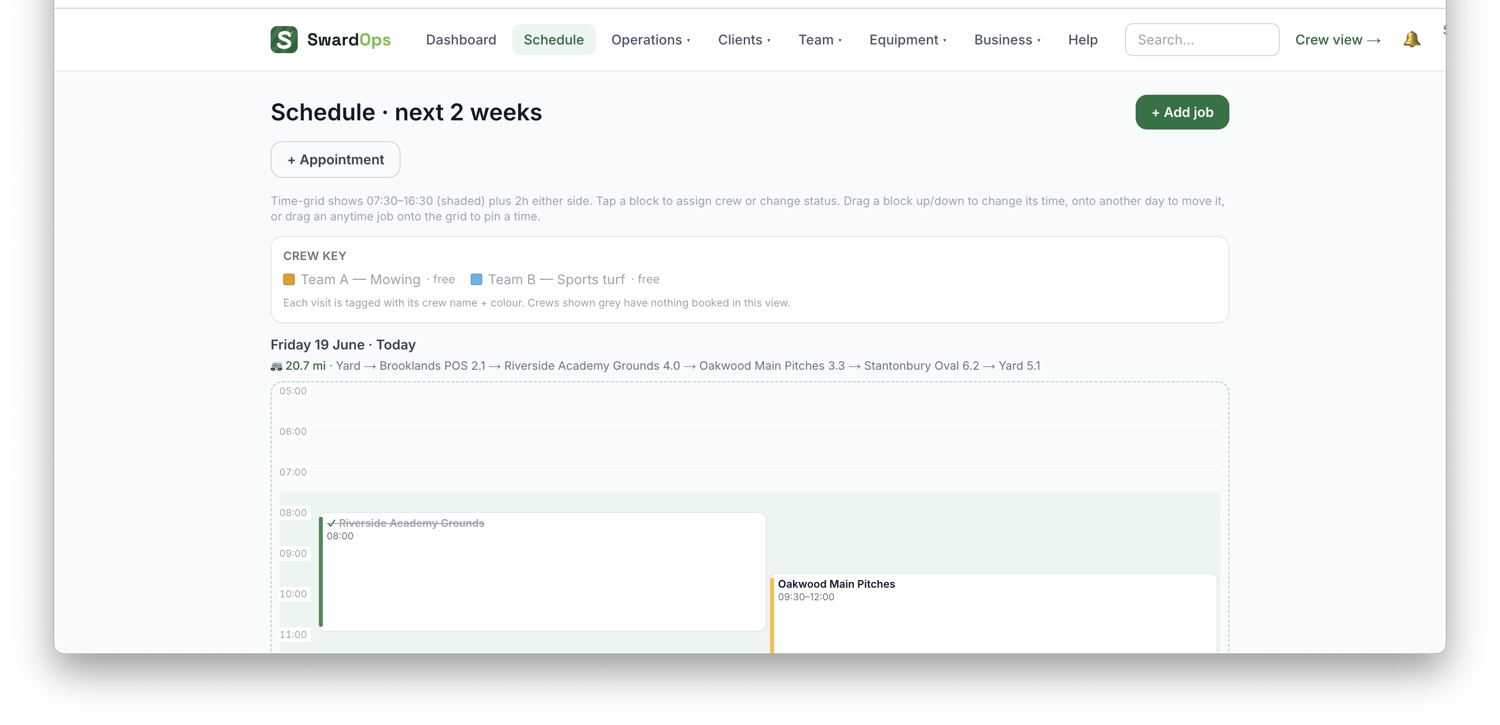
Schedule → Crews lays one day out Outlook-style: a column per crew, the hours down the left, timed jobs sitting on the grid and "any time" jobs pooled at the top of their column. One look tells you where everybody is.
Column order is the order you set on Team → Crews with the ↑/↓ arrows, not alphabetical. The tick-boxes above the board show and hide crews, and your choice sticks in that browser — handy if you run, say, maintenance and landscaping and only want one of them on screen at a time.
Width. The Narrow / Medium / Wide buttons set how many crews fit across. Medium shows seven on a normal laptop screen, Narrow eight, Wide four with the client's phone number and a Message button on every card. Cards drop detail as the columns get thinner rather than squashing it.
The names under each heading are who is on that crew's jobs today, not just who is in the crew:
- plain = on the crew's jobs
- dashed and grey = in the crew, nothing booked today
- ·cover in amber = working with this crew today but not one of its regulars
Click any name to open that staff member.
Moving work. Grab a card by the ⋮⋮ handle on its left:
- up or down re-times it (it snaps to the nearest quarter hour)
- sideways into another crew's column hands the job over — the new crew comes on, the old crew comes off, and anybody you'd added by hand stays put
- into the "any time" pool at the top takes it off the clock
- into Unassigned takes it off the crew altogether
Moving people. Drag a name into another crew's column to put that person with that crew for the day. It only changes today's jobs — it never changes who is in which crew, which stays a Team → Crews job. You're asked to confirm first, and told if it would leave one of their old crew's jobs with nobody on it.
When a drag won't go through, it says why rather than quietly doing nothing:
- a crew with nobody in it can't be handed a job, because a column belongs to a crew through its people. Put somebody in the crew first.
- a job with two crews on it has no single crew to take it off, so change the team on the visit itself.
- a finished job doesn't move at all. Re-crewing completed work rewrites who did it, and the sheet the client gets is a record — corrections belong on the visit page.
Landing here every morning: Settings → Features → Schedule opens on → Crews. Whatever you were last looking at today still wins, so this only decides where you start.